[Oracle] Your Oracle does not start automatically after booting? That's because you didn't do this! !
It is a simple, stable and scalable delay [message queue] (https://cloud.tencent.com/product/cmq?from=10680) framework developed by the author in high concurrency scenarios, with precise timing tasks and delay queue processing functions. Since open source for more than half a year, it has successfully provided more than a dozen small and medium-sized enterprises with precise timing scheduling solutions, and has withstood the test of the production environment. In order to benefit more children's shoes, the open source framework address is now given:
https://github.com/sunshinelyz/mykit-delay
PS: Welcome to Star source code, you can also pr your awesome code.
Write in front
In accordance with the requirements of readers and friends, I wrote an article "[Oracle] What? As a DBA, you don't know how to install Oracle? ? ", because the reader installed the Oracle database completely according to my installation method, and installed the Oracle database in the CentOS 8 virtual machine. After the installation is successful, the virtual machine is closed, and when the virtual machine is restarted, The Oracle database does not start automatically. At this time, we need to restart the Oracle database.
Note: Friends pay attention to [Glacier Technology] WeChat public account to view "[Oracle] What? As a DBA, you don't know how to install Oracle? ? " article!
Restart the Oracle database
Restarting the Oracle database includes two steps: starting the Oracle database service process and starting the Oracle database. Let's continue to look down.
According to "[Oracle] What? As a DBA, you don't know how to install Oracle? ? "After installing the Oracle database, when we restart the system and use Navicat to connect to the Oracle database, the following prompt message will appear.
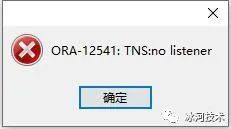
This is because after restarting the system, the Oracle database service did not restart automatically. We can also use the netstat command to see if there is a process listening on port 1521, as shown below.
[ root@binghe121 ~]# netstat -nlp | grep 1521[root@binghe121 ~]#
As you can see, there is no process listening on port 1521, indicating that the Oracle database process has not been started.
Next, we first need to start the Oracle database process. Log in to the system as the oracle user and enter the following command to start the Oracle service process.
lsnrctl start
The specific command execution process is as follows.
[ oracle@binghe121 ~]$ lsnrctl  start

LSNRCTL for Linux: Version 11.2.0.1.0- Production on 24-MAY-202016:14:09Copyright(c)1991,2009, Oracle.  All rights reserved.

Starting /home/oracle/tools/oracle11g/product/11.2.0/dbhome_1/bin/tnslsnr: please wait...

TNSLSNR for Linux: Version 11.2.0.1.0- Production
System parameter file is /home/oracle/tools/oracle11g/product/11.2.0/dbhome_1/network/admin/listener.ora
Log messages written to /home/oracle/tools/oracle11g/diag/tnslsnr/binghe121/listener/alert/log.xml
Listening on:(DESCRIPTION=(ADDRESS=(PROTOCOL=ipc)(KEY=EXTPROC1521)))
Listening on:(DESCRIPTION=(ADDRESS=(PROTOCOL=tcp)(HOST=binghe121)(PORT=1521)))

Connecting to(DESCRIPTION=(ADDRESS=(PROTOCOL=IPC)(KEY=EXTPROC1521)))
STATUS of the LISTENER
------------------------
Alias                     LISTENER
Version                   TNSLSNR for Linux: Version 11.2.0.1.0- Production
Start Date                24-MAY-202016:14:10
Uptime                    0 days 0 hr.0 min.0 sec
Trace Level               off
Security                  ON: Local OS Authentication
SNMP                      OFF
Listener Parameter File   /home/oracle/tools/oracle11g/product/11.2.0/dbhome_1/network/admin/listener.ora
Listener Log File         /home/oracle/tools/oracle11g/diag/tnslsnr/binghe121/listener/alert/log.xml
Listening Endpoints Summary...(DESCRIPTION=(ADDRESS=(PROTOCOL=ipc)(KEY=EXTPROC1521)))(DESCRIPTION=(ADDRESS=(PROTOCOL=tcp)(HOST=binghe121)(PORT=1521)))
The listener supports no services
The command completed successfully
At this point, use the netstat command again to view the occupancy of port 1521, as shown below.
[ root@binghe121 ~]# netstat -nlp | grep 1521
tcp6       00:::1521:::*                    LISTEN      2075/tnslsnr
unix  2[ ACC ]     STREAM     LISTENING     210892075/tnslsnr         /var/tmp/.oracle/sEXTPROC1521
As you can see, the Oracle database service process has been started.
Use Navicat again to connect to the Oracle database as shown below.
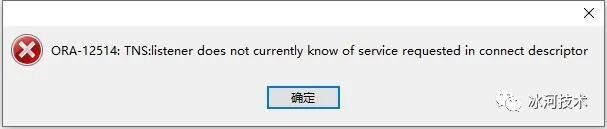
As you can see, the Oracle database was not successfully connected. This is because after starting the Oracle service process, we need to start the database.
Log in to the system as the oracle user and execute the following commands to start the Oracle database.
sqlplus /nolog
conn  /as sysdba
startup
The command execution effect is as follows.
[ oracle@binghe121 ~]$ sqlplus /nolog

SQL*Plus: Release 11.2.0.1.0 Production on Sun May 2416:23:572020Copyright(c)1982,2009, Oracle.  All rights reserved.

SQL> conn  /as sysdba
Connected to an idle instance.
SQL> startup
ORACLE instance started.

Total System Global Area 1068937216 bytes
Fixed Size                  2220200 bytes
Variable Size             641732440 bytes
Database Buffers          419430400 bytes
Redo Buffers                5554176 bytes
Database mounted.
Database opened.
At this point, use Navicat again to connect to the Oracle database, as shown below.
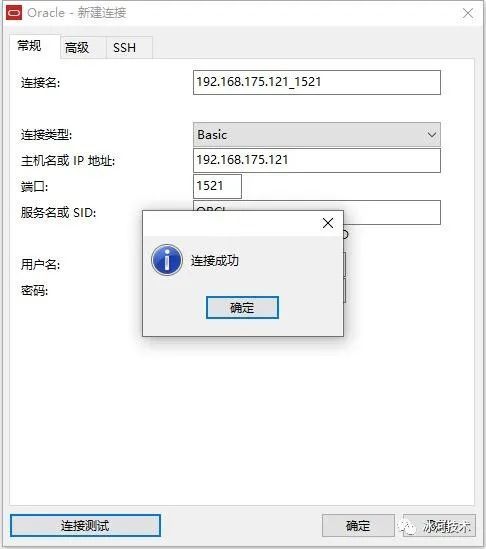
At this point, the Oracle database restarts successfully
Shut down the Oracle database
Log in to the system as the oracle user and execute the following commands in turn to shut down the Oracle database.
sqlplus /nolog
conn /as sysdba
shutdown immediate
exit
lsnrctl stop
The specific implementation is as follows.
[ oracle@binghe121 ~]$ sqlplus /nolog

SQL*Plus: Release 11.2.0.1.0 Production on Sun May 2416:31:212020Copyright(c)1982,2009, Oracle.  All rights reserved.

SQL> conn /as sysdba
Connected.
SQL> shutdown immediate
Database closed.
Database dismounted.
ORACLE instance shut down.
SQL> exit
Disconnected from Oracle Database 11g Enterprise Edition Release 11.2.0.1.0- 64bit Production
With the Partitioning, OLAP, Data Mining and Real Application Testing options
[ oracle@binghe121 ~]$ lsnrctl stop

LSNRCTL for Linux: Version 11.2.0.1.0- Production on 24-MAY-202016:31:52Copyright(c)1991,2009, Oracle.  All rights reserved.

Connecting to(DESCRIPTION=(ADDRESS=(PROTOCOL=IPC)(KEY=EXTPROC1521)))
The command completed successfully