Access Google Drive from Linode using Ubuntu 14.04
If you have used Google Drive, you know that it may be an indispensable tool for remote file access. Although one of the standard objections to remote storage is "just carry a flash drive", it can only be used when you need to add files to Linode. This guide will show you how to install and configure a great free software to access your Google Drive from Linode running Ubuntu 14.04 or higher.
Google-drive-ocamlfuse (OCamlfuse) uses the Drive API to scan and access your Google Drive content. Most of the following steps involve authorizing the use of the authorization and applying the authorization to the copy running on your Linode. After installation and authorization, you will be able to access Google Drive in real time via Linode.
Before you start, you should be familiar with our guide on [Getting Started] (https://www.linode.com/docs/getting-started/) and [Protecting Server Security] (https://www.linode.com/docs/security/securing-your-server/), especially if your Google Drive contains sensitive personal information.
**Note: **The steps in this guide require root privileges. Be sure to run the following steps as root or using the
sudoprefix. For more information about permissions, please refer to our [Users and Groups] (https://www.linode.com/docs/tools-reference/linux-users-and-groups) guide.
install software##
First, we will add the repository that OCamlfuse stores in our Linode. When it is done, we will update so that we can see the changes and then install as normal.
- Add a repository:
sudo add-apt-repository ppa:alessandro-strada/ppa - Update:
sudo apt-get update - Install the application:
sudo apt-get install google-drive-ocamlfuse
Access Google Drive API
Next, we will enable API access to Google Drive and create a set of credentials. These steps require a web browser on your local computer and access to the Google account associated with your Drive.
- Visit the Google API Developer Console on the desktop, URL is https://console.developers.google.com/project
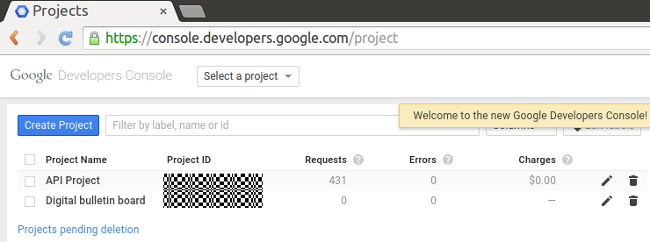
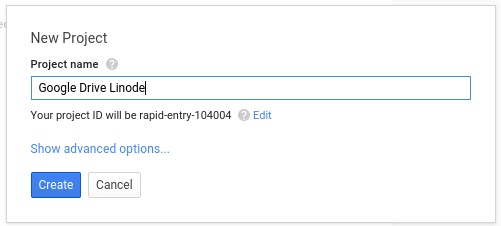
- Create a project. Click "Create Project", then name the project and click "Create" again:
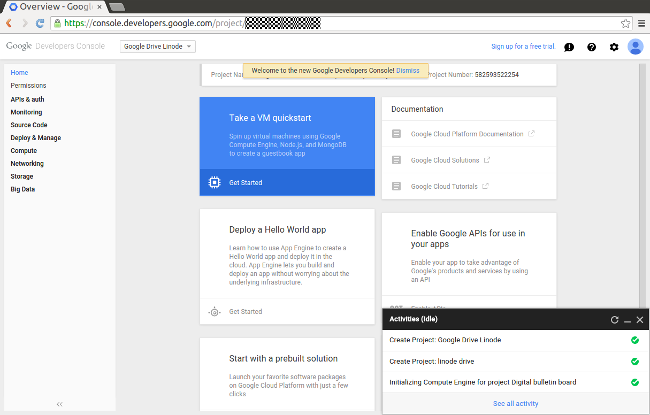
Google will take a moment to create the project, and when it is finished, you will reach the dashboard:
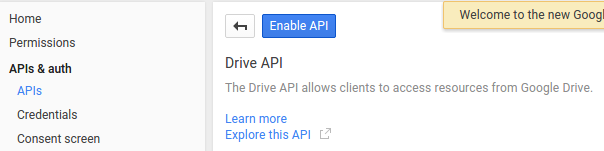
- Enable Google Drive API. Click API and Verification, and then API when the menu expands. You will see a list as shown below. Click Drive API:
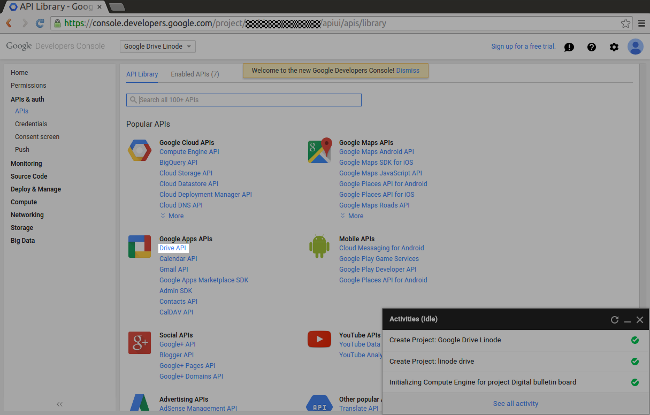
If you don’t see Drive API in the image list, you may need to search. After selecting it, click the blue "Enable" button at the top of the page.
- Click Credentials in the menu on the left side of the page. Then click "Add New Credentials".
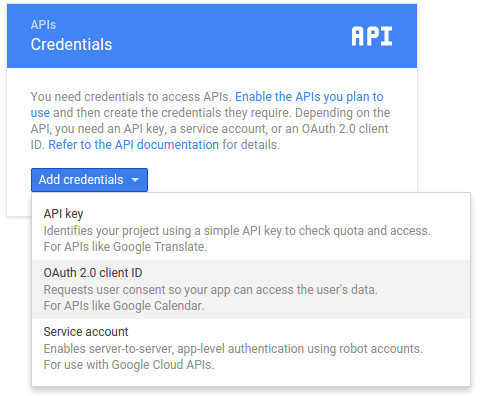
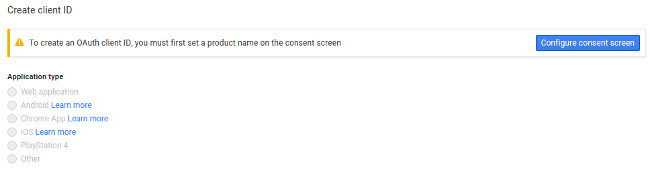
Click Configure License Screen. Google assumes that you are writing a piece of software, so it needs some information about it.
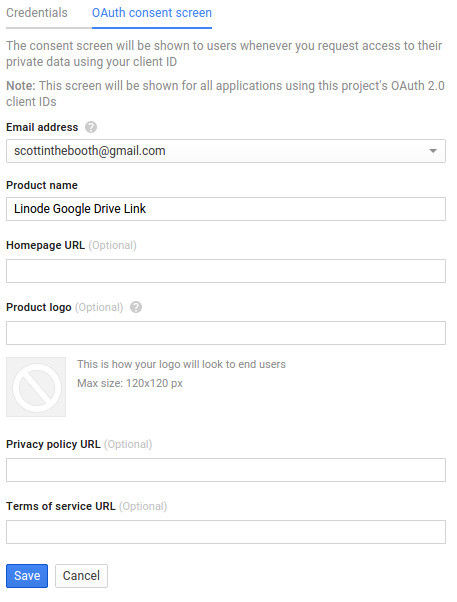
The product name field is required, but you can leave everything else blank. Then click "Save" at the bottom of the page.
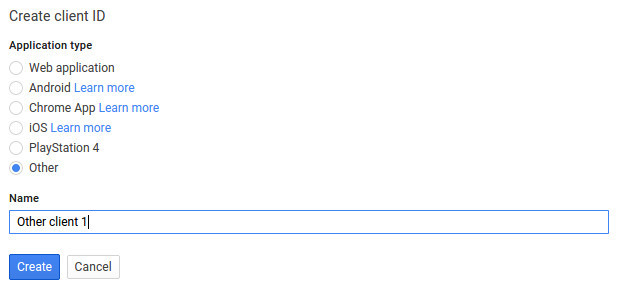
Now click on "Other" as the application type. Google will ask for a name again-you can use the default name or choose a name that you can easily associate with the item. Then click Create.
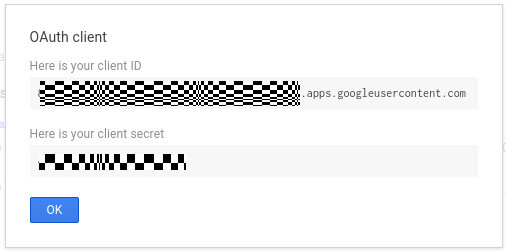
Click Credentials on the menu on the left side of the screen and select your project from the list. You can now view your Client ID and Client Key strings:
Authorize OCamlfuse Access
Next, we will provide Drive API credentials to OCamlfuse in your Linode and authorize it to access your Google Drive.
- Authorize your Google Drive link, replace
client-IDandclient-secretwith the content received from Google API Manager in the above steps:
google-drive-ocamlfuse -headless -label me -id client-ID -secret client-secret
The output of this command will give you a long URL. Copy and paste it for use in step 2:
Please, open the following URL in a web browser: https://accounts.google.com/o/oauth2/auth?client_id=URL_SNIPPED Please enter the verification code: - Google will ask to allow this new application (OCamlfuse) to access your Google Drive. Click "Accept" to receive the verification code:
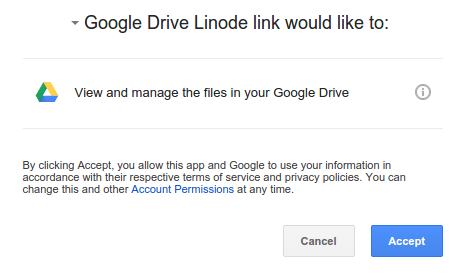
- Copy/paste the verification code back to OCamlfuse in your Linode.
Choose where to install Google Drive##
The following steps will create an empty directory where Google Drive will exist. All your Google Drive files and folders will appear here.
- Create a mount point. The following will create it in your home folder, but you can choose a different path:
mkdir ~/google-drive - Install Google Drive:
google-drive-ocamlfuse -label me google-drive
And you are done! The directory google-drive will now reflect the contents of your Google Drive! When you access the folder for the first time, it may take a few minutes to sync, depending on the content on the drive. However, after the initial synchronization, the access is almost immediate.
Troubleshooting##
If your Google Drive content doesn’t load automatically, your credentials may have expired. If this happens
- On your local computer, visit http://console.developers.google.com If you have already created other projects on the Developers Console, be sure to select the project created above.
- Click API and Auth.
- Click "Credentials" in the menu on the left side of the page. From there, select the client ID from the list, which will be identified by your project name.
- Click Reset Password.
- Repeat these steps to Authorize access to OCamlfuse on your Linode.
- Reinstall Google Drive:
google-drive-ocamlfuse -label me google-drive
For more tutorials, please go to [Tencent Cloud + Community] (https://www.linode.com/docs/email/clients/install-squirrelmail-on-ubuntu-16-04-or-debian-8/) to learn more.
Reference: "https://www.linode.com/docs/applications/cloud-storage/access-google-drive-linode/"
Recommended Posts