Fun with jenkins-install jenkins on your own server
I have been working as a front-end for several years. The project’s CI/CD has always used the company’s existing jenkins platform, and no longer a specially customized platform based on jenkins. Of course, there are other CI/CD tools, such as gitlab, But in my opinion, jenkins is more pure, focusing on CI/CD, and more mature, the community is active and very powerful, there are currently more than 1,000 plug-ins to support construction, deployment, automation, and more importantly, the slogan of the official website is deep attracted me. So I plan to play on my own server, and at the same time, I will share some related progress and results here, hoping to use it for work in the future.

ps: My server: CentOs8 Linux
Planned several goals to achieve
- Run on your own machine done
- Use jenkins to pull the git warehouse on the code cloud to the server
- After pulling the code to the server, you can manually trigger the build and deployment
- Complete automated deployment
- Develop your own plug-in, and I haven’t figured out what to do
- To be determined...
First you need to install the java environment
Jenkins is a free and open source continuous integration tool written in Java, so we first need to install the java environment.
You can install Java Runtime Environment (JRE) or Java Development Kit (JDK), here I installed java11, and the whole installation process is very fast.
Execute the following command
# dnf install java-11-openjdk-devel
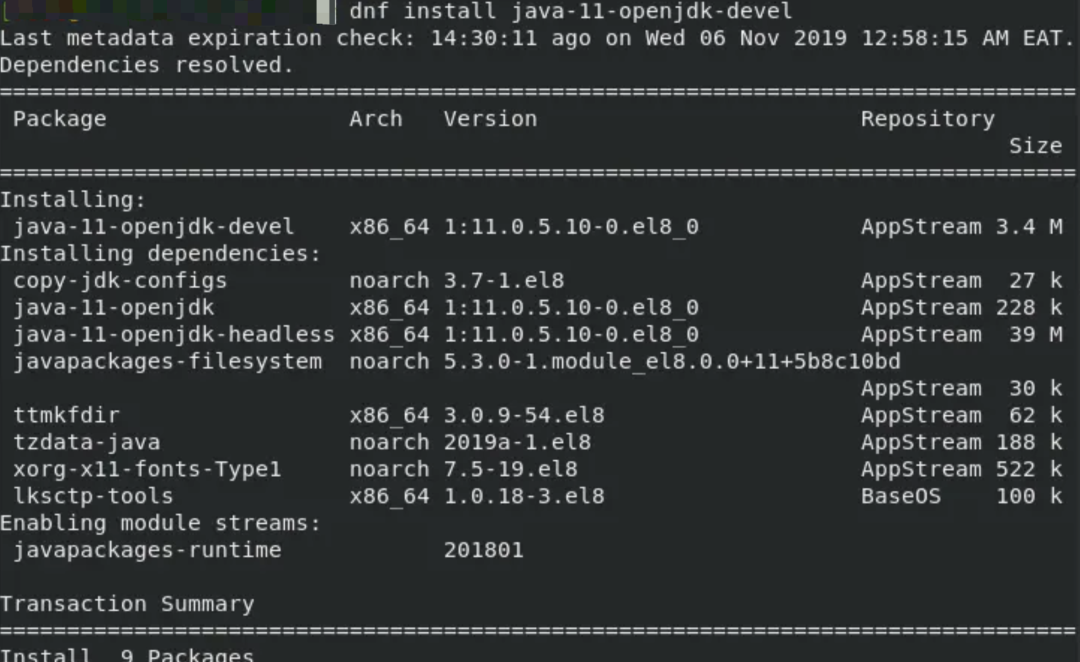
After installation, verify that Java 11 is installed successfully.
#java --version

You can see that java has been installed successfully.
Add Jenkins repository on CentOS 8#
Since Jenkins is not available in the CentOS 8 repository, we will manually add the Jenkins repository to the system.
First add Jenkins Key
#rpm --import https://pkg.jenkins.io/redhat-stable/jenkins.io.key
Append the Jenkins repository to CentOS 8
#cd /etc/yum.repos.d
#curl -O https://pkg.jenkins.io/redhat-stable/jenkins.repo
The screenshots are omitted, basically there is no obstacle.
Install Jenkins
Jenkin can be installed only after the Jenkins repository is successfully added
//Execute the following command
# dnf install jenkins
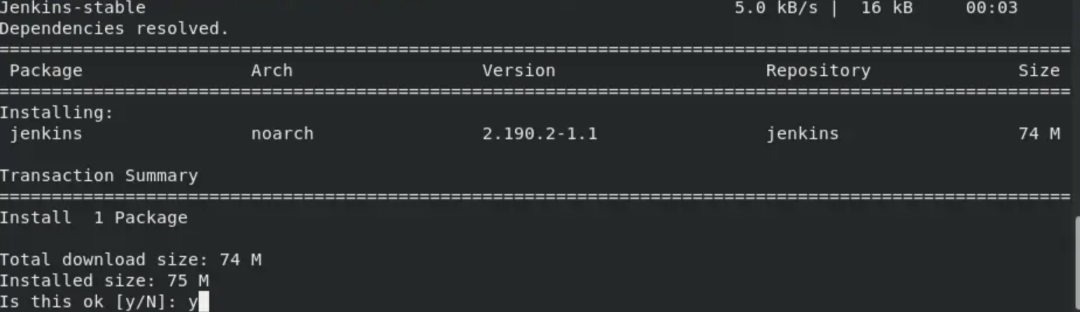
After the installation is complete, start and verify the status of Jenkins through the command
# systemctl start jenkins
# systemctl status jenkins

The above output shows that Jenkins is up and running.
Configure firewall (optional)
The cloud hosts of Alibaba Cloud and Tencent Cloud do not need to be configured, but the accessible ports need to be opened in the security policy.
Configure the firewall to allow access to port 8080 used by Jenkins. To open the port on the firewall, run the following command.
# firewall-cmd --add-port=8080/tcp --permanent
# firewall-cmd --reload
Set up Jenkins on CentOS 8
At this point we have basically succeeded, but there is a big hole waiting for you.
After completing the initial configuration, you need to set up Jenkins on your browser.
The visit address is as follows
http://server-IP:8080
First look at the startup interface
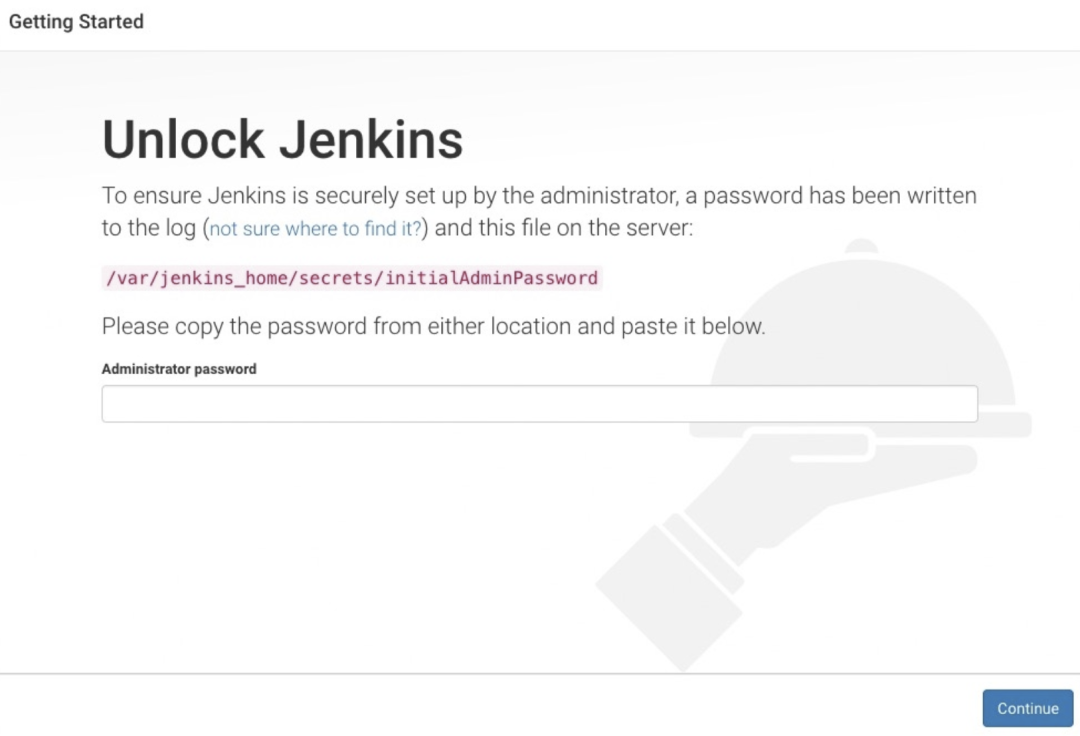
Of course, a password is required to unlock Jenkins, which is located in the file /var/lib/jenkins/secrets/initialAdminPassword.
Open by cat command
# cat /var/lib/jenkins/secrets/initialAdminPassword
The second step, plug-in installation "use suggested plug-in installation" or "select the plug-in to install"
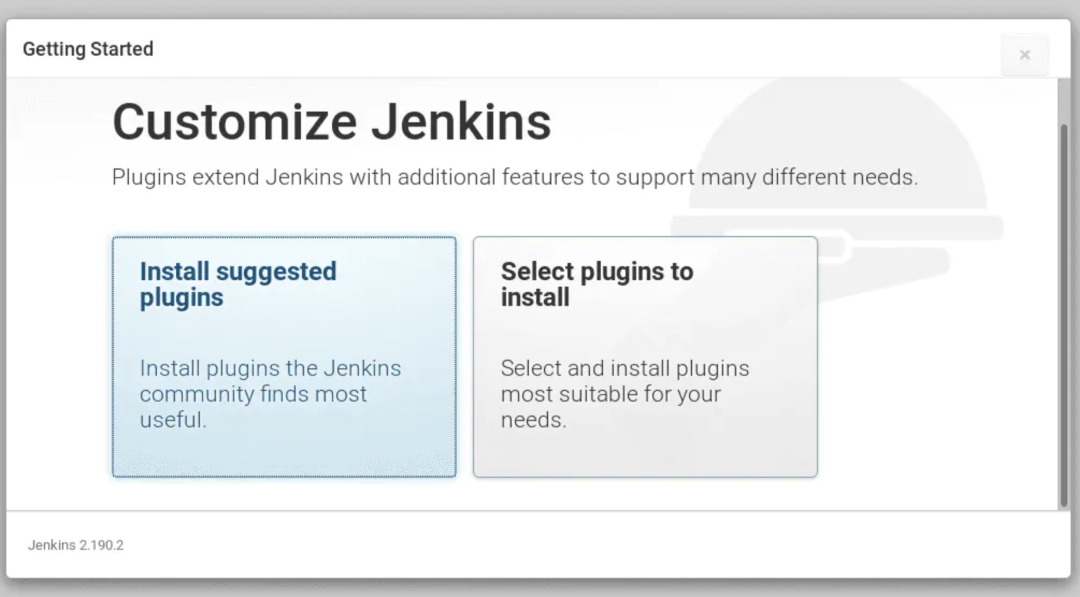
In this step, I chose the recommended installation.
Then entered the long installation process, which made people anxious.
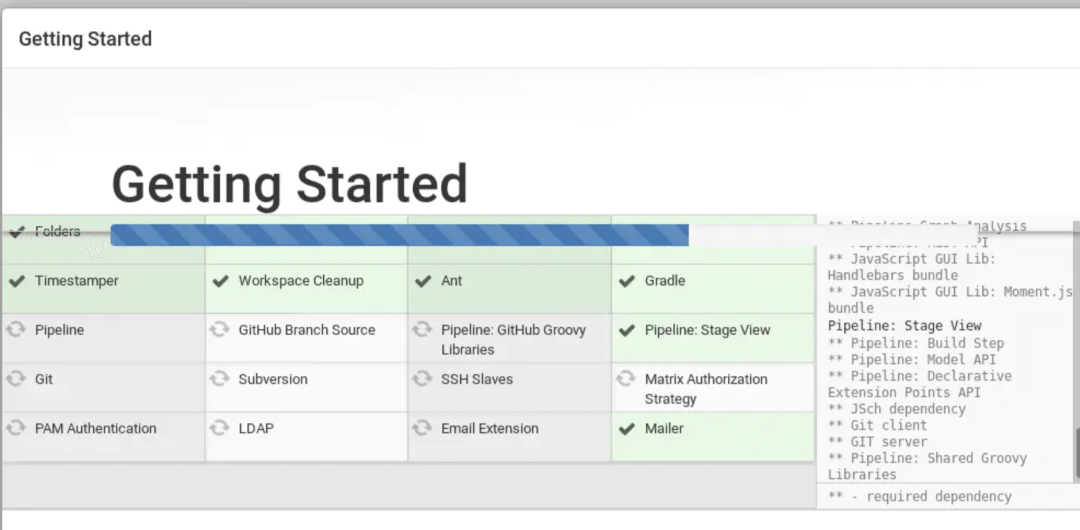
Manually install the plugin
To the previous step, I was a bit miserable. Many plug-ins failed to install, and it took a long time. Later, they closed it and let him install it himself.
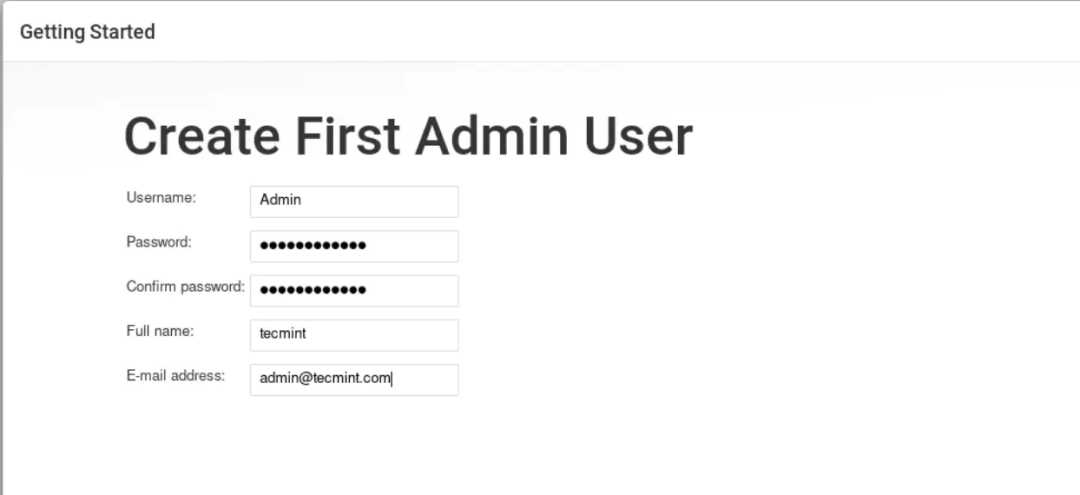
In theory, ideally, the follow-up should be like this
- Let you create an administrator account, you can’t enter a large number of keys every time.
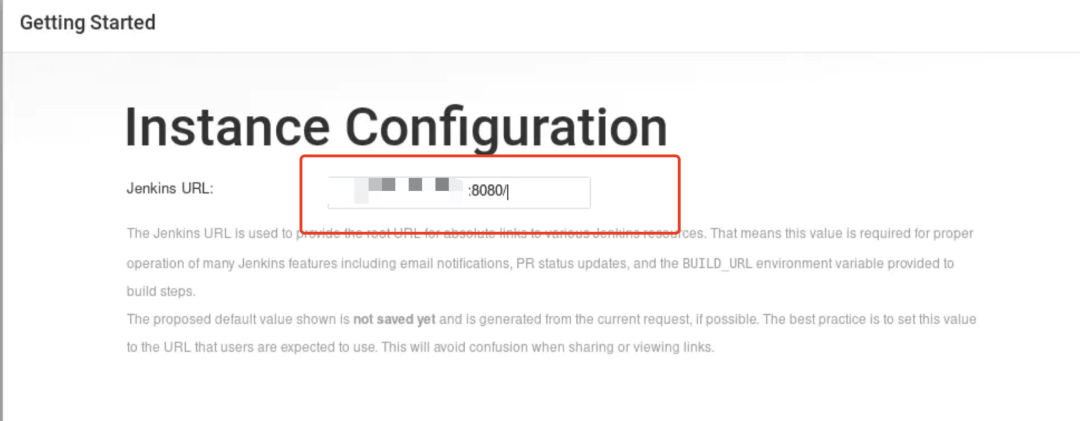
- Let you reset the access address
- Finally, I will tell you that you have succeeded
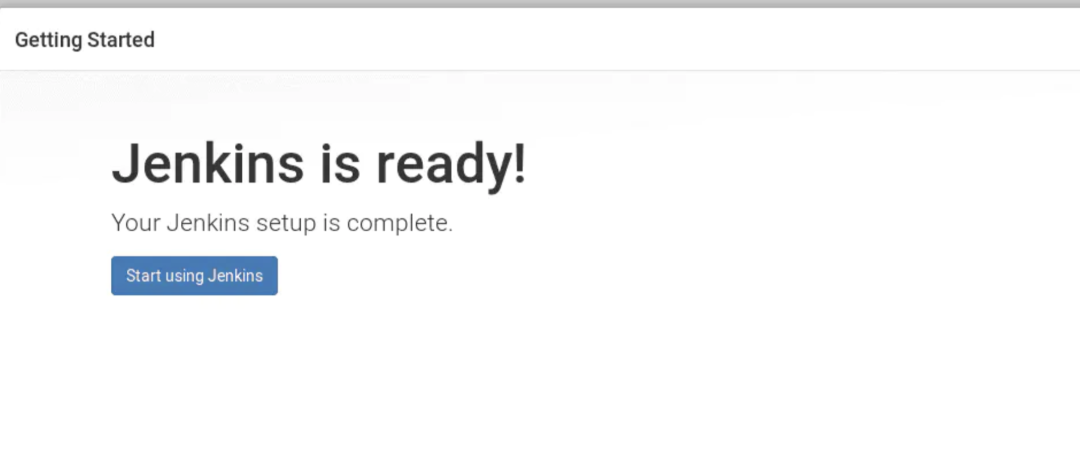
However, I didn't go so smoothly. When I went to see it again the next day, the plugin still failed to install. After retrying many times, it still failed. However, after installing some basic plugins, I was able to enter the jenkins backend.
However, it also shows which plug-ins failed to install (the source and network of the picture below, my system has been configured, no error picture was left at the time, but the problem is the same)
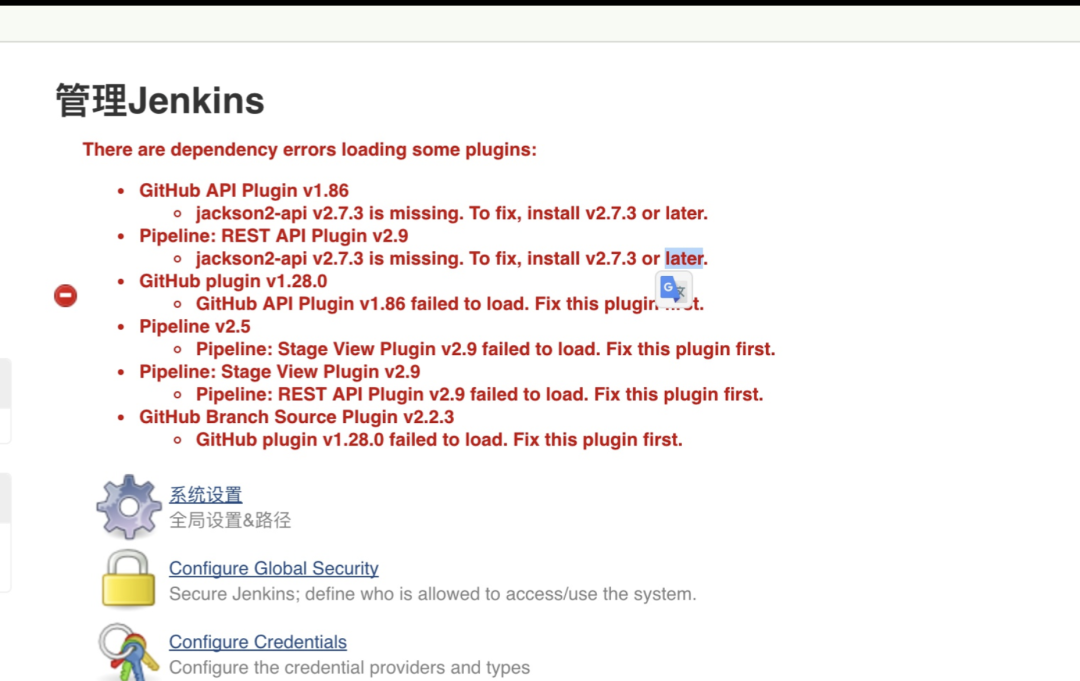
The specific reason for the installation failure has been given, that is, the lack of plug-ins need to be installed.
First tried to search in jenkins to install, system management -> manage plug-ins -> optional plug-ins -> enter the plug-in name -> check the corresponding plug-in -> click to install directly. But there is no search.
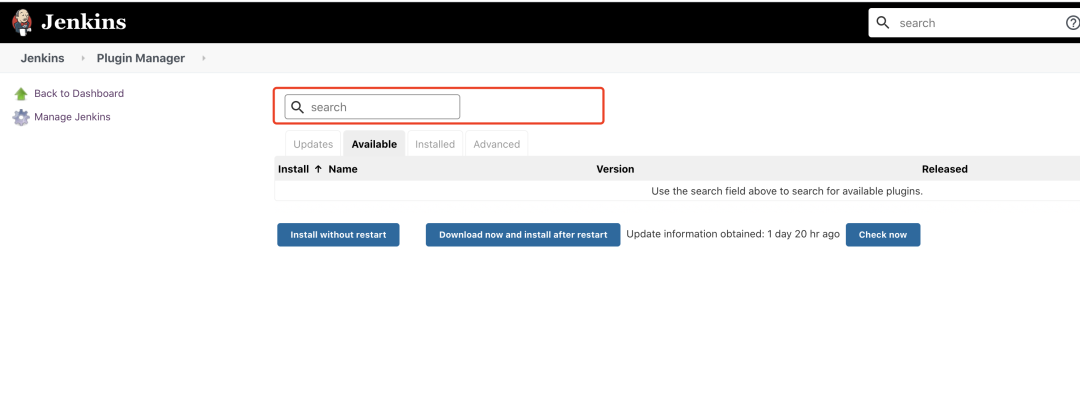
Later, I could only try to install it manually, download the plug-in, and upload it to jenkins for installation, and that was done.
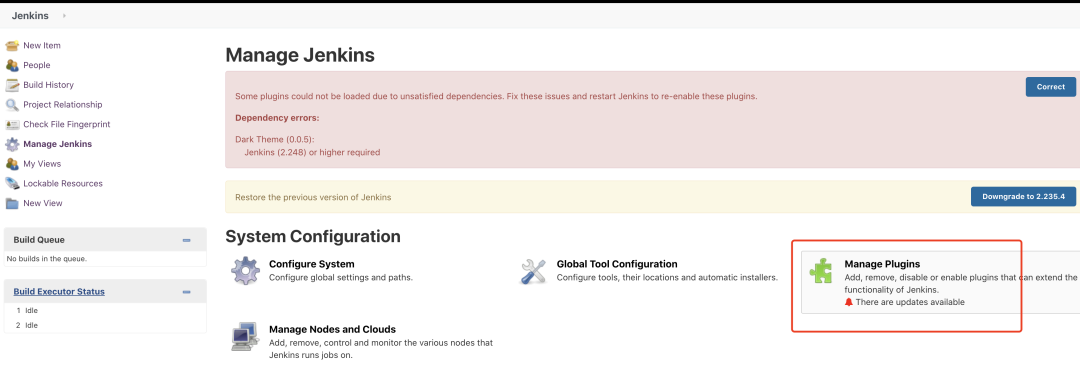
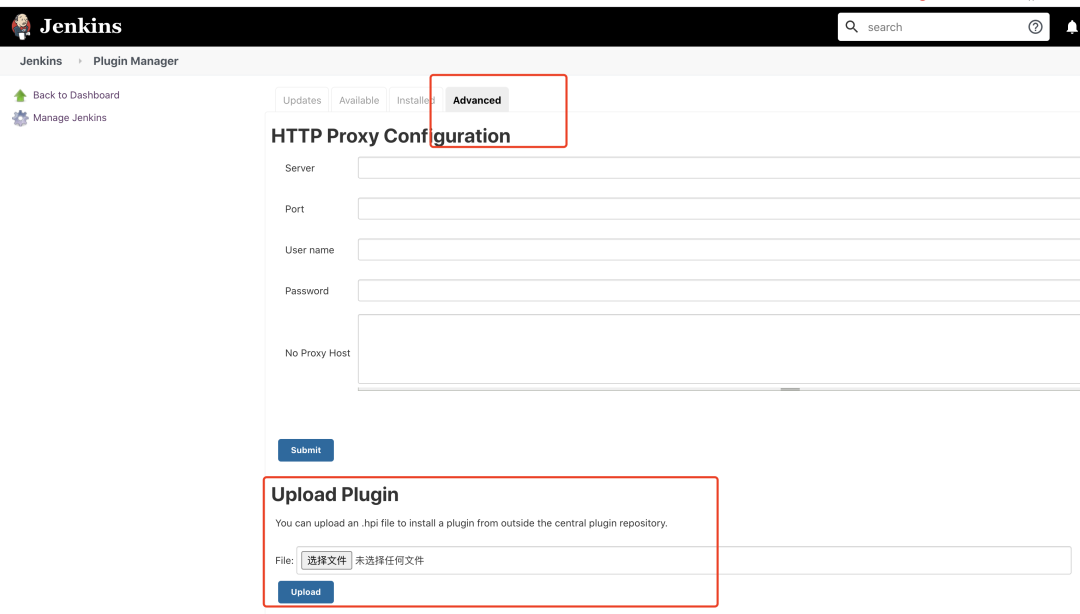
Where can I download the plug-in?
Official address: http://updates.jenkins-ci.org/download/plugins/
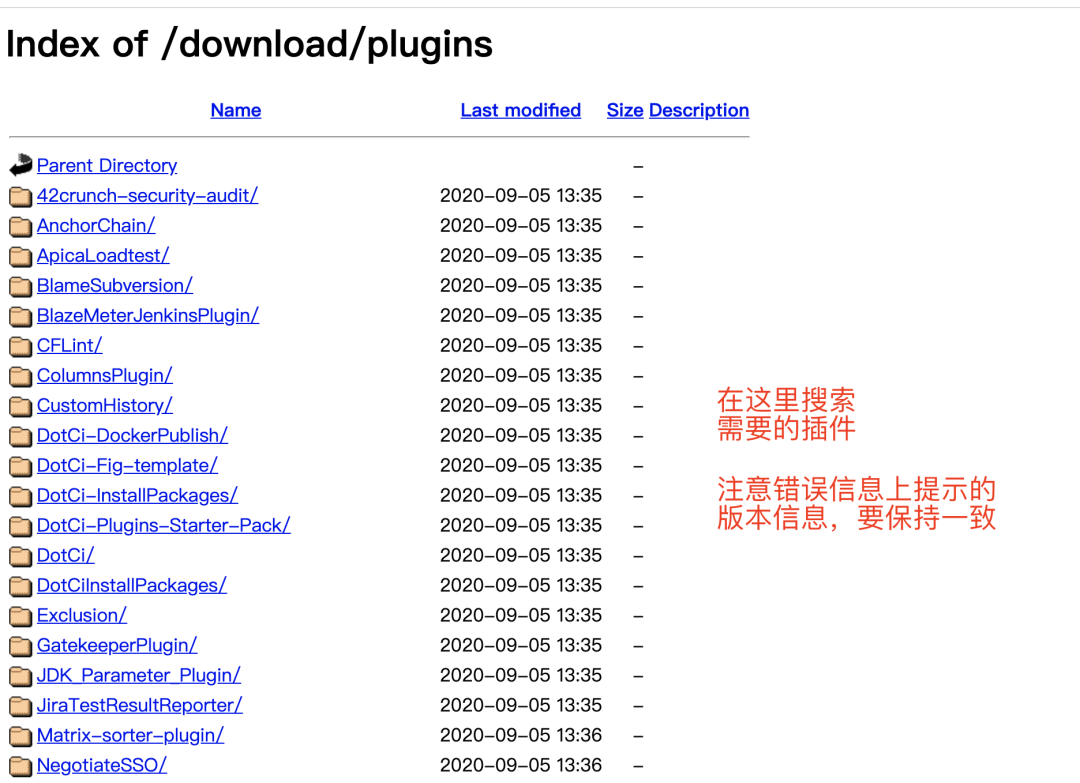
Downloaded plugin
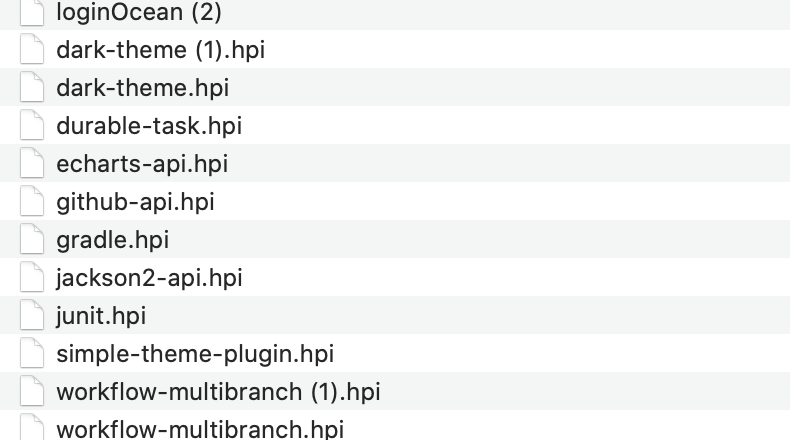
Then after uploading through the upload channel above, jenkins will automatically install it for you.
Finally you are here
After the plug-in is installed successfully, you can play happily, but the overall configuration time is a bit long. I was not in a hurry at first, and I can't come. I usually work too busy and the plug-in installation is slow. I will look at it the next day.
Look at the final operating market
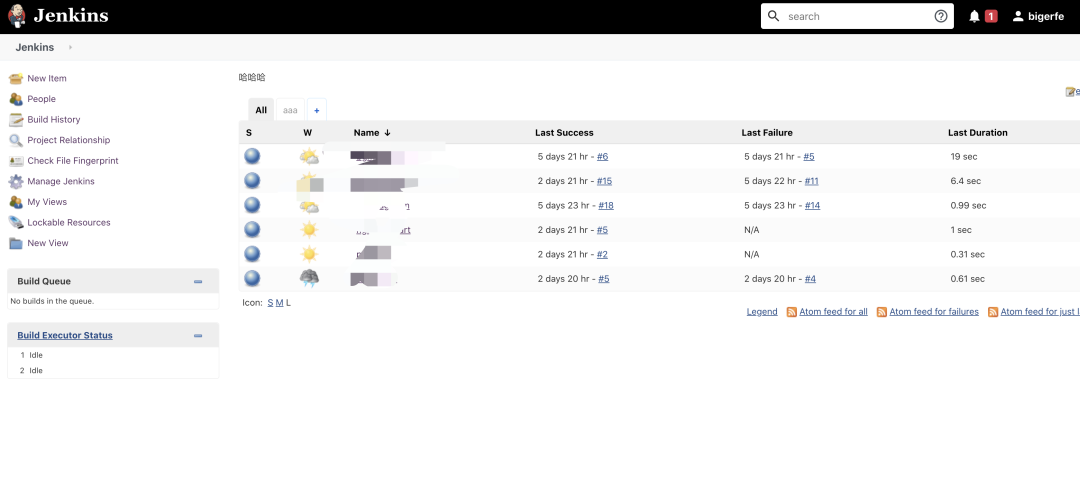
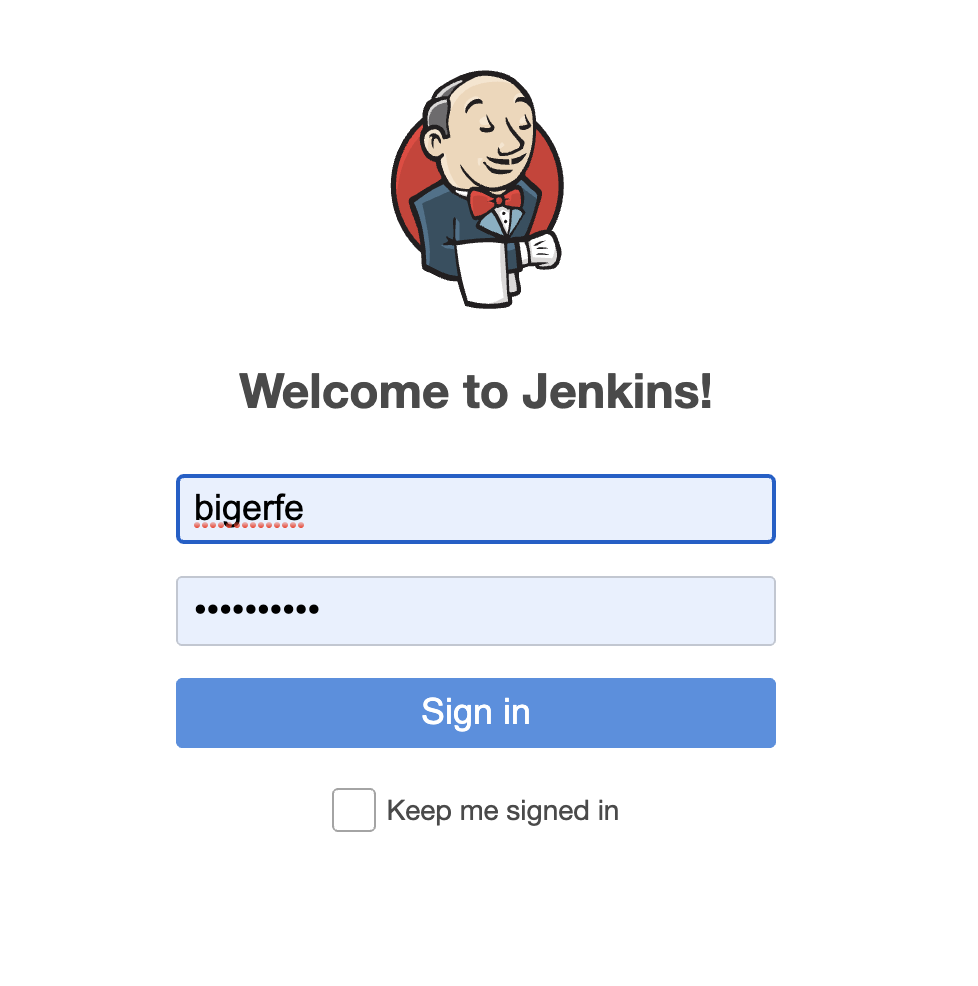
Then I created an account for myself, so I don't need a lot of keys anymore.
Other
Some commands that may be used
jenkins start
# service jenkins start
jenkins restart
# service jenkins restart
You can also restart through the url backdoor
http://xxx:8080?restart
jenkins stop
# service jenkins stop
At last
There are no big pits on the whole, it is still relatively smooth, but it takes a longer time, but it is not afraid of late for a good meal, it does not matter if it is slow.
However, there are also tutorials based on Docker installation on the official website, so you can try it if you are interested.