CentOS7/RHEL7 systemd detailed
CentOS7/RHEL7 systemd detailed explanation
table of Contents
- Why systemd
(1) About Linux service management
(2) Advantages and disadvantages of SysV init
(3) Improvement of UpStart
(4) The birth of systemd
(5) Why systemd can start quickly - Introduction to SysV init
(1) What is SystemV
(2) The run level of SysV init
(3) SysV init running sequence
(4) SysV init and system shutdown
(5) SysV init management and control functions - Features of systemd
(1) What problems does systemd solve?
(2) Where is the dispute about systemd?
(3) systemd can end the service process more thoroughly - Systemd features of CentOS 7
(1) The socket service remains active
(2) Inter-process communication keeps active function
(3) Keep the device active
(4) Keep the file path active
(5) System state snapshot
(6) Mount and automatic mount point management
(7) Lightning parallel start
(8) Unit logic simulation check
(9) Backward compatible with SysV init - How to analyze and measure systemd startup speed
(1) View the detailed startup time consumed by each service
(2) View the service tree table of serious time-consuming
(3) Print analysis diagram and other commands - CentOS 7 systemd is backward compatible
(1) Systemd has limited support for run levels.
(2) systemd does not support personalized commands like init scripts.
(3) systemd does not support communication with services that are not started from systemd.
(4) systemd can only stop running services
(5) The system service information cannot be read from the standard output device.
(6) systemd does not inherit any context.
(7) SysV init script dependency
(8) Timeout mechanism - systemd service management
(1) What is a unit
(2) Service management of systemd
(3) View service details - Use systemd target
(1) How to know which process services a target needs?
(2) target and run level
(3) Target management - Shut down, pause, hibernate the system
- Manage remote systems through systemd
- Create and modify systemd unit files
(1) Overview of unit files
(2) Understand the unit file structure
(3) Create a custom unit file
(4) Create emacs.service example:
(5) Create a second sshd service example
(6) Modify the existing unit file
(7) Extended default unit configuration file configuration - Unit instantiation
- VNC SERVER configuration
1. Why systemd
(1) About Linux service management
The process of the Linux system from booting to providing services is like this. First, the machine is powered on, then GRUB is loaded through MBR or UEFI, then the kernel is started, the kernel starts the service, and then starts external services.
SysV init UpStart systemd mainly solves the problem of service boot management.
Tip: Regarding the spelling of systemd, the official term is systemd, which is neither Syetemd nor systemD.
(2) Advantages and disadvantages of SysV init
SysV init is the earliest solution. It relies on dividing different run levels and starting different service sets. Services are controlled by scripts and executed sequentially.
The advantages of the SysV init solution are:
The principle is simple and easy to understand;
Relying on shell script control, the threshold for writing service scripts is relatively low.
weakness is:
The services are started sequentially, and the startup process is relatively slow;
It is not possible to start services according to needs. For example, when you usually want to insert a USB flash drive, you can start the service controlled by USB, which can save system resources better.
(3) Improvement of UpStart
In order to solve the plug and play of system services, UpStart came into being. In the CentOS6 system, SysV init and UpStart coexist. UpStart mainly solves the plug and play of services. The problem of slow start of service sequence, UpStart's solution is to group related services, the services in the group are started sequentially, and the groups are started in parallel.
(4) The birth of systemd
The slow startup of SysV init service was not a problem in the past, especially the Linux system used to be mainly on the server system, and it was rare to restart once a year. Some servers require more than 5 minutes to detect the optical hardware, and the system startup is relatively fast.
However, with the advent of the mobile Internet, the problem of slow startup of the SysV init service has become more and more prominent. Many mobile devices are based on the Linux kernel, such as Android. Mobile devices start frequently, and each time they start, they have to wait for the service to start sequentially, which is obviously unacceptable. Systemd was born to solve this problem.
The design idea of systemd is:
Start the service as quickly as possible;
Reduce the system resource occupation as much as possible.
(5) Why systemd can start quickly
Systemd uses a parallel method to start services, unlike SysV init which is executed sequentially, so it greatly saves system startup time.
With parallel startup, the biggest difficulty is to resolve the dependencies between services. The solution of systemd is to use a buffer pool-like approach. For example, a service that depends on TCP will check the TCP port of the dependent service when it starts. Systemd will cache the request for the TCP port first. When the dependent server is started, it will pass the request to the service to make the two services communication. The same principle applies to the D-BUS of inter-process communication. Directory mounting is to make the service think that the directory is mounted first, and then the actual operation is performed when the directory is actually accessed.
2. Introduction to SysV init
SysV init is a systemV style init system, as the name suggests, it is derived from SystemV series UNIX. It provides more flexibility than the BSD style init system. It is the UNIX init system that has been popular for decades and has been adopted by various Linux distributions.
(1) What is SystemV
SystemV, once also known as AT&T SystemV, is one of the many versions of the Unix operating system. It was originally developed by AT&T and first released in 1983. A total of 4 major versions of SystemV have been released: version 1, 2, 3, and 4. SystemV Release4, or SVR4, is the most successful version. It has become the source of some common UNIX features, such as "SysV initialization script" (/etc/init.d), used to control system startup and shutdown, SystemV Interface Definition (SVID ) Is a standard definition of how SystemV works.
(2) The run level of SysV init
SysV init uses the term runlevel to define "subscribed run mode". SysV init checks whether there is an item of'initdefault' in the'/etc/inittab' file. To tell the init system whether there is a default operating mode. If there is no default operating mode, the user will enter the system console and manually decide which operating mode to enter.
The operating mode in SysV init describes the operating mode of various subscriptions of the system. There are usually 8 operating modes, namely operating modes 0 to 6 and S or s.
Each Linux distribution has a different definition of the operating mode. But 0, 1, and 6 have been unanimously agreed by everyone:
0 Shutdown
1 Single user mode
6 Reboot
The working range of various operating modes is usually defined in the /etc/inittab file. For example, RedHat defines runlevels 3 and 5. Run mode 3 initializes the system to the shell mode of character interface; Run mode 5 initializes the system to GUI mode. Regardless of the command line interface or the GUI, operating modes 3 and 5 are complete and formal operating states compared to other operating modes, and the computer can complete the tasks required by the user. Mode 1, S, etc. are often used for troubleshooting and recovery after system failures.
Obviously, under these different operating modes, the system needs to initialize the running process and the initialization preparations are different. For example, operating mode 3 does not need to start the X system. The user only needs to specify which mode needs to be entered, and SysV init is responsible for performing all the necessary initialization work for this mode.
(3) SysV init running sequence
SysV init cleverly uses scripts, file naming rules and soft links to achieve different runlevels. First, SysV init needs to read the /etc/inittab file. Analyzing the content of this file, it obtains the following configuration information:
The runlevel that the system needs to enter;
Capture the definition of key combinations;
Define the power fail/restore script;
Start getty and virtual console;
After obtaining the configuration information, SysV init sequentially executes the following steps to initialize the system to the scheduled runlevelX:
/etc/rc.d/rc.sysinit
/etc/rc.d/rc and /etc/rc.d/rcX.d/ (X stands for run level 0-6)
/etc/rc.d/rc.local
XDisplayManager (if needed)
1 ) Rc.sysinit script function
First, run rc.sysinit to perform some important system initialization tasks. In RedHat's RHEL5 (RHEL6 has used UpStart), rc.sysinit mainly completes the following tasks:
Activate udev and selinux;
Set the kernel parameters defined in /etc/sysctl.conf;
Set the system clock;
Load keymaps;
Activate the swap partition;
Set the hostname (hostname);
Root partition check and remount;
Activate RAID and LVM devices;
Turn on disk quota;
Check and mount all file systems;
Clear out expired locks and PID files;
2 ) Rc.d script
After completing the above work, SysV init starts to run the /etc/rc.d/rc script. According to different runlevels, the rc script will open the rcX.d directory corresponding to the runlevel (X is runlevel), find and run all startup scripts stored in this directory. Each runlevelX has such a directory, the directory name is /etc/rc.d/rcX.d.
Many different scripts are stored in these directories. The scripts whose file name starts with S are the scripts that should be run at startup, and the number following S defines the execution order of these scripts. The scripts in the /etc/rc.d/rcX.d directory are actually some soft link files, and the real script files are stored in the /etc/init.d directory. As follows:
Scripts in the rc5.d directory
[ root@www~]#ll/etc/rc5.d/
lrwxrwxrwx1rootroot16Sep42008K02dhcdbd->../init.d/dhcdbd
....( Omission)....
lrwxrwxrwx1rootroot14Sep42008K91capi->../init.d/capi
lrwxrwxrwx1rootroot23Sep42008S00microcode_ctl->../init.d/microcode_ctl
lrwxrwxrwx1rootroot22Sep42008S02lvm2-monitor->../init.d/lvm2-monitor
....( Omission)....
lrwxrwxrwx1rootroot17Sep42008S10network->../init.d/network
....( Omission)....
lrwxrwxrwx1rootroot11Sep42008S99local->../rc.local
lrwxrwxrwx1rootroot16Sep42008S99smartd->../init.d/smartd
....( Omitted below)....
When all the initialization scripts are executed. SysV init runs the /etc/rc.d/rc.local script.
rc.local is where Linux leaves users to personalize settings. You can put things you want to set up and start privately here. Generally, there are more than one user of a LinuxServer, so this is the consideration.
(4) SysV init and system shutdown
SysV init is not only responsible for initializing the system, but also for shutting down the system. When the system is shut down, in order to ensure the consistency of the data, it is necessary to carefully complete and clean up in sequence.
For example, you should stop the service that reads and writes to the file system, and then umount the file system. Otherwise, the data will be lost.
The control of this order is also controlled by the naming rules of all scripts in the /etc/rc.d/rcX.d/ directory. All scripts in this directory starting with K will be called when the system is shut down. The letter K The following numbers define their order of execution.
These scripts are responsible for safely stopping services or other shutdown tasks.
(5) SysV init management and control functions
In addition, after the system is started, the administrator also needs to manage and control the started processes. The SysV init package contains a series of tools to control the startup, operation and shutdown of all other programs.
Halt stops the system.
init is the init process entity of SysV init itself, runs as pid1, and is the parent process of all user processes. The main function is to use the /etc/inittab file to create a process during startup.
killall5 is the killall command of System V. Send signals to processes other than your own session process, so you cannot kill the shell currently in use.
Last traces back the /var/log/wtmp file (or the file specified by the -f option), showing the login status of all users since this file was created.
Lastb has the same function as last. By default, the /var/log/btmp file is used to display all failed login attempts.
mesg controls other users' access to user terminals.
pidof finds out the process identification number (pid) of the program and outputs it to the standard output device.
poweroff is equal to shutdown-h–p, or telinit0. Shut down the system and cut off the power supply.
Reboot is equal to shutdown-r or telinit6. Restart the system.
runlevel reads the system login record file (usually /var/run/utmp) and outputs the previous and current system run levels to the standard output device.
Shutdown terminates the system in a safe way. All users who are logging in will be notified that the system is about to terminate, and no new logins will be allowed.
sulogin is called by init when the system enters single-user mode. When receiving the -b option passed by the boot loader, init will also call sulogin.
Telinit is actually a connection of init, used to transmit single-character parameters and signals to init.
utmpdump displays the contents of the /var/run/utmp file to the standard output device in a user-friendly format.
wall sends messages to all logged-in users with information rights.
Different Linux distributions have developed some auxiliary tools on the basis of these SysV init basic tools to simplify the management of the init system. For example, RedHat's RHEL developed the initscripts package on the basis of SysV init, which contains a large number of startup scripts (such as rc.sysinit), and also provides command line tools such as service, chkconfig, and even a set of graphical interfaces to manage the init system . Other Linux distributions also have their own initscript or init packages with other names to simplify the management of SysV init.
As long as you understand the mechanism of SysV init, in a simplest system with only SysV init, you can directly call scripts to start and stop services, manually create inittab and create soft connections to complete these tasks. Therefore, understanding the basic principles and commands of SysV init is the most important. You can even develop your own set of management tools.
3. Features of systemd
(1) What problems does systemd solve?
Start services on demand to reduce system resource consumption;
Start processes in parallel as much as possible to reduce the waiting time for system startup;
Provide a consistent configuration environment, not just service configuration;
Provides a snapshot of the service status, which can restore the service status at a specific point.
(2) Where is the dispute about systemd?
systemd tries to provide a consistent configuration environment. Please note that not only the service configuration, but also other aspects of the system configuration, this is also the ambition of systemd, hoping to unify the configuration on the Linux system, in order to achieve this goal, systemd sacrificed Compatibility of SysV init and BSD system. systemd makes full use of the Linux kernel API and no longer supports the BSD system. This is currently the biggest argument for systemd in the open source community.
Personally, this is a good thing. For administrators, there is no longer any need to learn different configurations on different releases, nor do they need to write a bunch of judgments and judge different hair releases in order to write a script. The prerequisite of operation and maintenance automation is standardization. Only when standardization can be automated can systemd take a big step in this direction. Even the cost of learning systemd is relatively high.
(3) systemd can end the service process more thoroughly
The daemon process will fork twice in order to become a service, so the process number will change. When UpStart ends the process, it may find the wrong process number, causing the service to never be stopped.
There are more special cases. If the process spawns a child process, the child process forks itself twice, leaving the main process. To end such a child process, UpStart's method is to track the fork through strace and call exit. This method very complicated.
systemd takes advantage of the latest features of the kernel and uses CGroup to solve this problem. CGroup processes are tree-shaped, so no matter how the service starts a new child process, all these related processes will belong to the same CGroup. Systemd only needs to traverse the specified The CGroup can correctly find all related processes, and stop them one by one.
4. Systemd features of CentOS 7
(1) The socket service remains active
When the system is started, systemd creates listening ports for all services that support the socket activation function. When the services are started, they pass the sockets to these services. This method not only allows services to be started in parallel at startup, but also ensures that requests to connect to the service will not be lost during service restart. The request to the service port is reserved and stored in the queue.
(2) Inter-process communication keeps active function
When a client application requests inter-process communication through D-Bus for the first time, systemd will immediately start the corresponding service. systemd uses inter-process communication to keep the active function according to the D-Bus configuration file.
(3) Keep the device active
When specific hardware is inserted, systemd starts the corresponding hardware service support. systemd keeps the hardware activated at any time according to the hardware service unit configuration file.
(4) Keep the file path active
When a specific file or path status changes, systemd will activate the corresponding service. systemd guarantees that the service is activated according to the path service unit configuration file.
(5) System state snapshot
systemd can temporarily save all current unit configuration files, or restore unit configuration files from a previous snapshot. In order to save the current system service status, systemd can dynamically generate unit file snapshots.
(6) Mount and automatic mount point management
systemd monitors and manages mount and automatic mount points, and mounts according to the unit configuration file of the mount point.
(7) Lightning parallel start
Because the socket keeps active function, systemd can start in parallel so the socket monitoring service greatly reduces the system startup time.
(8) Unit logic simulation check
When a unit is activated or deactivated, systemd will calculate the dependent lines, generate a temporary simulation check, and verify consistency. If they are inconsistent, systemd will try to correct them automatically and remove unimportant tasks that report errors.
(9) Backward compatible with SysV init
systemd fully supports the basic core specification scripts of the SysV initLinux standard. Such scripts are easy to upgrade to the systemd service unit.
5. How to analyze and measure systemd startup speed
systemd-analyze is a tool for analyzing startup performance, used to analyze service time consumption at startup. The default display boot is the time consumed by the kernel and user space:
[ root@localhost~]#systemd-analyze
Startupfinishedin818ms(kernel)+6.240s(initrd)+32.979s(userspace)=40.038s
It has the same effect as using the systemd-analyzetime command.
(1) View the detailed startup time consumed by each service
Use the systemd-analyzeblame command to view the detailed startup time consumed by each service:
[ root@localhost~]#systemd-analyzeblame
30.852 siscsi.service
16.994 skdump.service
10.871 sboot.mount
...
103 mssystemd-sysctl.service
101 msdatapool.mount
(2) View the service tree table of serious time-consuming
The systemd-analyzecritical-chain command prints a tree-like table of services that consume a lot of time and sorts them according to the time consumed by startup. The more time consumed, the more it is ranked first. The time after the @ is the service activation or startup time, and the time after the + sign is the time consumed by the service startup. Personal understanding @ is the time from system boot to service startup, which is a relative time consumption, + is the time consumed by service startup, which is an absolute time consumption.
[ root@localhost~]#systemd-analyzecritical-chain
Thetimeaftertheunitisactiveorstartedisprintedafterthe"@"character.
Thetimetheunittakestostartisprintedafterthe"+"character.
[email protected]
└─[email protected]+16.994s
└─[email protected]
└─[email protected]+54ms
└─[email protected]+535ms
└─[email protected]
└─[email protected]
└─[email protected]
└─[email protected]
└─[email protected]+2ms
└─[email protected]+67ms
└─[email protected]
└─[email protected]+10.871s
└─systemd-fsck@dev-disk-by\x2duuid-8c77568b\x2d7e51\x2d4e32\x2dbbdf\[email protected]+226ms
└─[email protected]+152ms
└─[email protected]+25ms
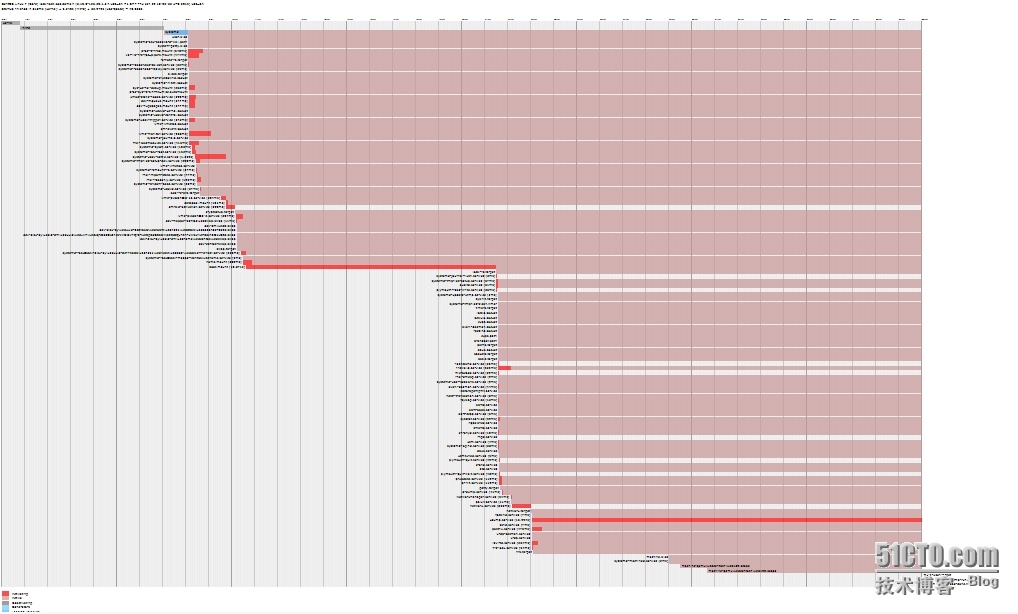
(3) Print analysis diagram and other commands
systemd-analyzeplot prints a service consumption schedule in svg format, which can be displayed graphically through a browser, which is very intuitive:
[ root@localhost~]#systemd-analyzeplot>plot.svg
Other parameters:
systemd-analyzedot uses the separator to generate the current service
systemd-analyzedump displays the current service status in a friendly way
6 Systemd file type and storage location
The systemd configuration file is called the unit unit and ends with a different extension depending on the type.
. service system service;
. target a group of system services;
. automount automatic mount point;
. device A device that can be recognized by the kernel;
. mount mount point;
. File or directory of path file system;
. Process created outside the scope;
. Slice is a group of hierarchical management system processes;
. Snapshot system service status management;
. Socket inter-process communication socket;
. swap defines swap files or devices;
. timer defines a timer.
6. CentOS 7 systemd is backward compatible
systemd is designed to be backward compatible with SysV init and Upstart as much as possible. The following are some of the parts that are no longer compatible with the previous major versions of RHEL.
(1) Systemd has limited support for run levels.
In order to preserve compatibility, systemd provides a certain number of target units, which can directly correspond to the run level, or can be supported by early distributed run level commands. Not all targets can be mapped to runlevels. In this case, using the runlevel command may return an unknown runlevel of N, so it is recommended to avoid using the runlevel command in RHEL7.
(2) systemd does not support personalized commands like init scripts.
In addition to some standard command parameters such as start, stop, status, the SysV init script can support any parameters you want as needed, and provide additional functions through parameters, because the server script of SysV init is actually a shell script, and the command parameters are actually Shell sub-functions. For example, RHEL6's iptables service script can execute panic command line parameters. This parameter allows the system to immediately enter emergency mode and discard all incoming and outgoing data packets. However, command-line parameters like this are not supported in systemd. Systemd only supports specifying command-line parameters in the configuration file.
(3) systemd does not support communication with services that are not started from systemd.
When systemd starts the service, it saves the main ID of the process for easy tracking. The systemctl tool uses the process PID to query and manage the service. On the contrary, if the user starts a specific service from the command line, the systemctl command has no way to determine whether the service status is up or running.
(4) systemd can only stop running services
In RHEL6 and earlier versions, when the program to shut down the system is started, the RHEL6 system will execute the shutdown operation of all service scripts under /etc/rc0.d/, regardless of whether the service is running or not running at all. And systemd can close only the running services, which can greatly save the shutdown time.
(5) The system service information cannot be read from the standard output device.
When systemd starts the service, it directs the standard output information to /dev/null so as not to disturb the user.
(6) systemd does not inherit any context.
systemd does not inherit any context, such as the environment variables of the HOME or PATH of the user or session. Each service gets a clean context.
(7) SysV init script dependency
When systemd starts the SysV init script, when systemd is running, it reads and inherits the dependency information of the service from the Linux StandardBase (LSB) Linux standard library header file.
(8) Timeout mechanism
To prevent the system from being stuck, all services have a 5-minute timeout mechanism.
7. systemd service management
(1) What is a unit
Before RHEL7, service management was distributed and managed by SysV init or UpStart through scripts under /etc/rc.d/init.d. These scripts are classic Bash scripts that allow administrators to control the status of the service. In RHEL7, these scripts are replaced by service unit files.
In systemd, resources such as services and mounts are collectively called units. Therefore, there are many unit types in systemd. The extension of the service unit file is .service, which is similar to the function of scripts. For example, there are parameters for viewing, starting, stopping, restarting, enabling or disabling services.
Place the systemd unit file:
/usr/lib/systemd/system/systemd default unit file installation directory
/run/systemd/systemsystemd is created when the systemd unit is running, this directory takes precedence over the following directory
/etc/systemd/system The unit directory created and managed by the system administrator has the highest priority.
(2) Service management of systemd
You can use the systemcl command to control the service. The service command and chkconfig command can still be used, but mainly for compatibility reasons, they should be avoided as much as possible.
When using the systemctl command, the extension of the service name can be written in full, for example:
systemctl stop bluuetooth.service
It can also be ignored, for example:
systemctl stop bluetooth
Systemctl commonly used commands:
Start the service systemctl start name.service
Shut down the service systemctl stop name.service
Restart the service systemctl restar tname.service
Only when the service is running, restart the service systemctl try-restart name.service
Reload the service configuration file systemctl relaod name.service
Check the service operation status systemctl status name.service or systemctl is-active\ name.service
Show all service status details systemctl list-units--type service --all
Allow the service to start systemctl enable name.service
Disable service startup systemclt disable name.service
Check the service startup status systemctl status name.service or systemctl
is-enabled name.service
List all services and check whether to start systemctl list-unit-files --type service
(3) View service details
Use the following command to list services:
systemctl list-units --type service
By default, only active services are listed. If you want to see all services, use the --all or -a parameter:
systemctl list-units--type service --all
Sometimes you want to see the services that can be set up at boot, use the following command:
systemctl list-unit-files --type service
To view service details, use the following command:
systemctl status name.service
Service information keyword explanation
The Loaded service has been loaded, showing the absolute path of the unit file and marking that the unit file is available.
Active service has been running, and there is start time information.
Main PID is the PID that is consistent with the process name, and the main process PID.
Attachment information of the Status service.
Attachment information of the process related to Process.
CGroup information of the CGroup process.
8. Use systemd target
(1) How to know which process services a target needs?
For example, if you want to understand which services are enabled on the target unit multi-user.target, use the following command:
$systemctlshow-p"Wants"multi-user.target
Wants=rc-local.serviceavahi-daemon.servicerpcbind.serviceNetworkManager.serviceacpid.servicedbus.serviceatd.servicecrond.serviceauditd.servicentpd.serviceudisks.servicebluetooth.serviceorg.cups.cupsd.servicewpa_supplicant.servicegetty.targetmodem-manager.serviceportreserve.serviceabrtd.serviceyum-updatesd.serviceupowerd.servicetest-first.servicepcscd.servicersyslog.servicehaldaemon.serviceremote-fs.targetplymouth-quit.servicesystemd-update-utmp-runlevel.servicesendmail.servicelvm2-monitor.servicecpuspeed.serviceudev-post.servicemdmonitor.serviceiscsid.servicelivesys.servicelivesys-late.serviceirqbalance.serviceiscsi.service
In addition to Wants, you can also view various forms of dependent and dependent information: WantedBy, Requires, RequiredBy, Conflicts, ConflictedBy, Before, After.
(2) target and run level
In versions prior to RHEL7, run levels were used to represent specific operating modes. The run level is defined as seven levels, represented by the numbers 0 to 6, each level can start certain services. RHEL7 uses target instead of running basic.
The systemd target uses the target unit file description. The target unit file extension is .target. The only goal of the target unit file is to organize other systemd unit files together through a series of dependencies. For example, the graphical.target unit is used to start a graphical session. Systemd will start services like GNOME display management (gdm.service), account service (axxounts-daemon), and activate the multi-user.target unit. The similar multi-user.target unit will start the necessary NetworkManager.service and dbus.service services and activate the basic.target unit.
RHEL7 pre-defines some targets which are more or less different from the previous run levels. For compatibility, systemd also provides some targets mapped to the run level of SysV init. The specific corresponding information is as follows:
0 runlevel0.target, poweroff.target shut down the system.
1 runlevel1.target, rescue.target enter the rescue mode.
2 runlevel2.target, multi-user.target enter the non-graphical interface multi-user mode.
3 runlevel3.target, multi-user.target enter the non-graphical interface multi-user mode.
4 runlevel4.target, multi-user.target enter the non-graphical interface multi-user mode.
5 runlevel5.target, graphical.target enters the multi-user mode of the graphical interface.
6 runlevel6.target, reboot.target restart the system.
(3) Target management
1 ) Use the following command to view the currently available targets:
systemctl list-units --type target
To change the current operation basically use the following command:
systemctl isolate name.target
2 ) Modify the default run level
Use the systemctl get-default command to get the default run level:
[ root@localhost~]#systemctlget-default
multi-user.target
Use systemctl set-default name.target to modify the default running basic
[ root@localhost~]#systemctlset-defaultgraphical.target
rm'/etc/systemd/system/default.target'
ln-s'/usr/lib/systemd/system/graphical.target''/etc/systemd/system/default.target'
3 ) Rescue mode and emergency mode
Use systemctl rescue to enter rescue mode. If you can’t even enter rescue mode, you can enter emergency mode:
systtmctl emergency
The emergency mode enters the small system environment in order to repair the system. The emergency mode root directory is mounted read-only, the network is not activated, only a few services are started, and the root password is required to enter the emergency mode.
9. Shut down, pause, hibernate the system
In RHEL7, systemctl is used to replace a series of power management commands. The original commands can still be used, but it is recommended not to use them as much as possible. The corresponding relationship between systemctl and these commands is:
hatl, systemctl halt stop the system
poweroff, systemctl poweroff shuts down the system, shuts down the system power.
reboot, systemctl reboot restart the system
pm-suspend, systemctl suspend to suspend the system
pm-hibernate, systemct lhibernate hibernation system
pm-suspend-hybrid, systemctl hybrid-sleep suspend and hibernate the system
10. Manage remote systems through systemd
Not only can manage the local system, systemd can also control the remote system. The management of the remote system is mainly through the SSH protocol. Only confirm that the SSH can be connected to the remote system. Add the -H or --host parameter after the systemctl command, plus the remote system ip or host name will do.
11. Create and modify systemd unit files
(1) Overview of unit files
The unit file contains the instructions and behavior information of the unit. In the background systemctl commands work with unit files. In order to do the job well and correctly, the system administrator must be able to edit the unit files manually. Generally, unit files created manually by system administrators are recommended to be stored in the /etc/systemd/system/ directory.
The format of the unit configuration file is:
unit_name.type_extension
Here unit_name represents the unit name, and type_extension represents the unit type.
Unit files can be placed under a directory as additional files. For example, in order to customize the sshd.service service, you can create the sshd.service.d/custom.conf file and make some custom configurations in the file.
Similarly, you can create sshd.service.wants/ and sshd.service.requires/ directories. These directories contain the soft connections of the sshd service related services. When the system is installed, these soft connections can be created automatically or manually.
Many unit configuration files can use unit specifiers-wildcard strings, which can be dynamically replaced by variables when the unit file is booted. This makes it possible to create some common unit configuration templates.
(2) Understand the unit file structure
A typical unit file contains three sections:
[ Unit] section contains general options that do not depend on the unit type. These options provide unit descriptions, know the behavior of the unit, configure the unit and the dependencies of other units.
[ The unittype] section, if the unit has specific type instructions, these instructions are grouped together in the unittype section. For example, the service unit file contains a [Service] section, which contains frequently used service configurations.
[ Install] section, contains systemctlenable or disable command installation information.
1 ) [Unit] section option
Description unit description information, these text information will be output in the systemclstatus command.
The URLs of the documentation information in the Documentation unit.
After defined to start after those units, this unit only starts after the specified unit is started. Unlike the Requires option, which does not explicitly activate a specific unit, the Before option has the opposite function.
The dependency of the Requires configuration unit, the units in the Requires option need to be activated together. If one unit fails to start, the other units will not be started.
Wants is much weaker than Requires option dependencies. If the unit in the list fails to start, it will not affect other units. This is the recommended way to establish custom unit dependencies.
Conflicts defines unit conflict relations, which is the opposite of Requires.
2 ) Option when [unittype] type is [Service]
Type The type of hive process at startup, which affects the function of execution and associated options. The optional keywords are:
Simple default value, the process and the main process of the service are started together;
The forking process is started as a child process of the service main process, and the parent process exits after it is fully started.
Oneshot is similar to simple, but the process exits after starting the unit.
Dbus is similar to simple, but only the main process gets the D-BUS name after the unit is started.
Notify is similar to simple, but after the unit is started, a main message is sent by the sd_notify() function.
Idle is similar to simple. The binary program that actually executes the process will be delayed until the tasks of all units are completed, mainly to avoid mixed output of service status and shell.
ExecStart specifies the command or script to start the unit, and the ExecStartPre and ExecStartPost sections specify user-defined scripts to be executed before or after ExecStart. Type=oneshot allows you to specify multiple user-defined commands that you want to execute sequentially.
ExecStop specifies the command or script to be executed when the unit is stopped.
ExecReload specifies the command or script to be executed when the unit is reloaded.
If the Restart option is allowed, the process will exit when the service restarts, and clear and restart operations will be executed through the systemctl command.
If RemainAfterExit is set to true, the service will be considered as active, even if all processes have exited, the default value is false. This option only needs to be configured when Type=oneshot.
3 ) [Install] section option
Alias provides a spatially separated additional name for the unit.
The RequiredBy unit is allowed to run a series of required dependent units, and the RequiredBy list obtains the dependent information from Require.
WantBy units are allowed to run required weakly dependent units, and Wantby obtains dependency information from the Want list.
Also indicates the unit installed with the unit or assisted.
DefaultInstance instance unit limit, this option specifies if the unit is allowed to run the default instance.
4 ) An example of a postfix service:
The unit file is located in /usr/lib/systemd/system/postifix.service, the content is as follows:
[ Unit]
Description=PostfixMailTransportAgent
After=syslog.targetnetwork.target
Conflicts=sendmail.serviceexim.service
[ Service]
Type=forking
PIDFile=/var/spool/postfix/pid/master.pid
EnvironmentFile=-/etc/sysconfig/network
ExecStartPre=-/usr/libexec/postfix/aliasesdb
ExecStartPre=-/usr/libexec/postfix/chroot-update
ExecStart=/usr/sbin/postfixstart
ExecReload=/usr/sbin/postfixreload
ExecStop=/usr/sbin/postfixstop
[ Install]
WantedBy=multi-user.target
(3) Create a custom unit file
The following scenarios require custom unit files:
I hope to create a daemon by myself;
Create a second instance for the existing service;
Introduce SysV init script.
On the other hand, sometimes it is necessary to modify existing unit files.
The following describes the steps to create a unit file:
1 ) Prepare the execution file of the custom service.
The executable file can be a script or a program of a software provider. If necessary, prepare a PID file for the main process of the custom service to ensure that the PID remains unchanged. In addition, scripts that configure environment variables may be needed to ensure that all scripts have executable attributes and do not require interaction.
2 ) Create a unit file in the /etc/systemd/system/ directory, and ensure that it can only be edited by the root user:
touch/etc/systemd/system/name.servicechmod664/etc/systemd/system/name.service
The file does not require execution permissions.
3 ) Open the name.service file and add service configuration. How to configure various variables depends on the type of service added. The following is a configuration example that depends on network services:
[ Unit]
Description=service_description
After=network.target
[ Service]
ExecStart=path_to_executable
Type=forking
PIDFile=path_to_pidfile
[ Install]
WantedBy=default.target
4 ) Notify systemd that a new service has been added:
systemctldaemon-reload
systemctlstartname.service
(4) Create emacs.service example:
1 ) Create the file and ensure the correct permissions:
~]# touch/etc/systemd/system/emacs.service
~]# chmod664/etc/systemd/system/emacs.service
2 ) Add configuration information:
[ Unit]
Description=Emacs:theextensible,self-documentingtexteditor
[ Service]
Type=forking
ExecStart=/usr/bin/emacs--daemon
ExecStop=/usr/bin/emacsclient--eval"(kill-emacs)"
Environment=SSH_AUTH_SOCK=%t/keyring/ssh
Restart=always
[ Install]
WantedBy=default.target
3 ) Notify systemd and start the service:
~]# systemctldaemon-reload
~]# systemctlstartemacs.service
(5) Create a second sshd service example
1 ) Copy the sshd_config file
]# cp/etc/ssh/sshd{,-second}_config
2 ) Edit the sshd-second_config file, add the port of 22220, and the PID file:
Port22220
PidFile/var/run/sshd-second.pid
If you need to modify other parameters, please read the help.
3 ) Copy unit file:
~]# cp/usr/lib/systemd/system/sshd{,-second}.service
4 ) Edit the unit file sshd-second.service
Modify the description field
Description=OpenSSHserversecondinstancedaemon
Add the sshd.service service after the After keyword:
After=syslog.targetnetwork.targetauditd.servicesshd.service
Remove sshdkey creation:
ExecStartPre=/usr/sbin/sshd-keygen remove this line
In the execution script, add the configuration file of the second sshd service:
ExecStart=/usr/sbin/sshd-D-f/etc/ssh/sshd-second_config$OPTIONS
The contents of the modified sshd-second.service file are as follows:
[ Unit]
Description=OpenSSHserversecondinstancedaemon
After=syslog.target network.targe tauditd.service sshd.service
[ Service]
EnvironmentFile=/etc/sysconfig/sshd
ExecStart=/usr/sbin/sshd -D -f /etc/ssh/sshd-second_config$OPTIONS
ExecReload=/bin/kill -HUP $MAINPID
KillMode=process
Restart=on-failure
RestartSec=42s
[ Install]
WantedBy=multi-user.target
5 ) If you use SELinux and add a tcp port, the port responsible for the second sshd service will be refused to bind:
~]# semanage port -a -tssh_port_t -p tcp22220
6 ) Set up boot and test:
~]# systemctl enable sshd-second.service
~] $ssh -p 22220 user@server
Make sure the firewall port is also open.
(6) Modify the existing unit file
The systemd unit configuration file is saved in the /usr/lib/systemd/system/ directory by default. The system administrator is not recommended to modify the files in this directory directly. The customized files are in the /etc/systemd/system/ directory. If required, the following solutions can be used:
Create a directory /etc/systemd/system/unit.d/, this is the most recommended way, you can refer to the initial unit file, through the attachment configuration file to extend the default configuration, the upgrade of the default unit file will be automatically Upgrade and application.
Copy a copy of the original configuration file from /usr/lib/systemd/system/ to /etc/systemd/system/, and then modify it. The copied version will overwrite the original configuration. This method cannot add additional configuration packages and is used in scenarios that do not require additional functions.
If you need to restore to the default configuration file, you only need to delete the configuration file under /etc/systemd/system/, without restarting the machine, just use the following command to apply the changes:
systemctl daemon-reload
The daemon-reload option reloads all unit files and recreates the dependency book, which is used when the unit file changes need to be applied immediately. In addition, you can also use the following command to achieve the same purpose:
init q
Also, if the modification is a unit file of a running service, the service needs to be restarted:
systemct lrestart name.service
(7) Extended default unit configuration file configuration
In order to extend the default unit file configuration, you need to create a directory under /etc/systemd/system/ and execute commands similar to the following as root:
mkdir/etc/systemd/system/name.service.d
Create a configuration file under the directory you just created, and it must end with a .conf file.
For example, create a custom dependency file with the following content:
[ Unit]
Requires=new_dependency
After=new_dependency
Another example, when restarting, you can configure it to restart 30 seconds after the main process exits. The configuration example is as follows:
[ Service]
Restart=always
RestartSec=30
It is recommended to generate only one small file at a time, and each file only focuses on improving one function, so that the configuration file can be easily removed or linked to the configuration directory of other service pairs.
In order to apply the changes just now, use root to perform the following operations:
systemctldaemon-reload
systemctlrestartname.service
Example: extend httpd.service service configuration
In order to execute a user-defined script when the httpd service starts, you need to modify the httpd unit configuration file, and perform the following steps. First, create a custom file directory and custom files:
~]# mkdir/etc/systemd/system/httpd.service.d
~]# touch/etc/systemd/system/httpd.service.d/custom_script.conf
Assuming the location of the custom file is /usr/local/bin/custom.sh, add this information to the custom_script.conf custom script:
[ Service]
ExecStartPost=/usr/local/bin/custom.sh
Apply changes:
~]# systemctldaemon-reload
~]# systemctlrestarthttpd.service
12. Unit instantiation
At runtime, it may be necessary to instantiate a template into several units. The @ character is used to identify the relationship between the template and the unit file. The instantiation unit can be from another unit file (using the Requires or Wants option), or use the systemctlstart command. The instantiated service unit can be named as follows:
template_name@instance_name.service
Several instances can point to all common instances of the same template file configuration option. For example, the Wants option of a unit configuration file can be:
[email protected],[email protected]
First let systemd search for a given service unit. If it is not found, systemd ignores the part between @ and dot, and directly searches the [email protected] service file, reads the configuration, and starts the service.
The wildcard field, called the unit specifier, can be used in any unit configuration file. The unit specifier replaces some unit parameters and explanations at runtime. The commonly used unit specifiers are described as follows:
%n The entire unit name, including the type suffix, %N has the same meaning, but ASCII is replaced with a forbidden character.
%p prefix the name, when instantiating, %p represents the part before the @ character.
%i The instance name, the @ character and the direct part of the unit type. %I has the same meaning, but ASCII is replaced by a prohibited character.
%H host name, the host name when the configuration file was loaded.
%t runtime directory, the current running directory, for root users is the /run directory, for unprivileged users, it is the directory specified by the XDG_RUNTIME_DIR variable.
For example, [email protected] contains the following structure:
[ Unit]
Description=Gettyon%I
...[ Service]
ExecStart=-/sbin/agetty--noclear%I$TERM
...
When [email protected] and [email protected] are instantiated, Description= is interpreted as "GettyonttyA" and "GettyonttyB".
13. VNC SERVER configuration
installation:
yum install tigervnc-server
Configuration:
(1) Copy configuration file:
~]# cp /lib/systemd/system/[email protected] \
/etc/systemd/system/[email protected]
(2) Edit the configuration file:
ExecStart=/sbin/runuser -l USER -c "/usr/bin/vncserver %i -geometry 1280x1024"
PIDFile=/home/USER/.vnc/%H%i.pid
Replace USER with the user of the VNC service you want to use, such as root:
ExecStart=/sbin/runuser -l root -c "/usr/bin/vncserver %i"
If you want to modify the resolution, you can modify the geometry content, and you don’t need to modify it.
Then keep the configuration.
(3) Use the systemctl command to force the configuration file to be read again:
~]# systemctl daemon-reload
(4) Configure vncserver password
vncpasswd
(5) If two users want to use vnc at the same time, two configuration files need to be configured:
[email protected] and [email protected], the file content is the same as the configuration method of root user
Then create vnc passwords for the two users:
~] $ su - USER_1
~] $ vncpasswd
Password:
Verify:~]$ su - USER_2
~] $ vncpasswd
Password:
Verify:
(6) Start the vnc service
systemctl start vncserver@:10
In order to boot up, use the following command:
systemctl enable vncserver@:10
ln -s '/etc/systemd/system/[email protected]' \
' /etc/systemd/system/multi-user.target.wants/vncserver@:10.service'
(7) Close the process
systemctl disable vncserver@:display_number.service
systemctl stop vncserver@:display_number.service
**Reference documents: **
https://www.ibm.com/developerworks/cn/linux/1407_liuming_init1/
Recommended Posts